Reverse-Engineering LLM Logic: Auditing Raw AI Responses
Operyn’s AI Response Insights module audits raw AI outputs at the query level, showing how models mention, cite, frame, and retrieve information through response text, competitor presence, fan-out subqueries, citations, sentiment, and platform-specific statistics.

Ly Phan
AI Visibility Researcher and Editor
Update on
Product Mechanics

Welcome to Part 7 of the Operyn Product Guide Series. (If you are just joining us, start with Part 1: Calibrating Your AI Tracking Environment.)
In Part 6, we audited citations at the URL level. Part 7 goes deeper. Open AI Response Insights from the left sidebar. This is where you read the actual text AI models produced in response to your tracked queries, and where you can examine the competitive, citation, sentiment, and fan-out context behind each one.
The AI Response Insights Overview
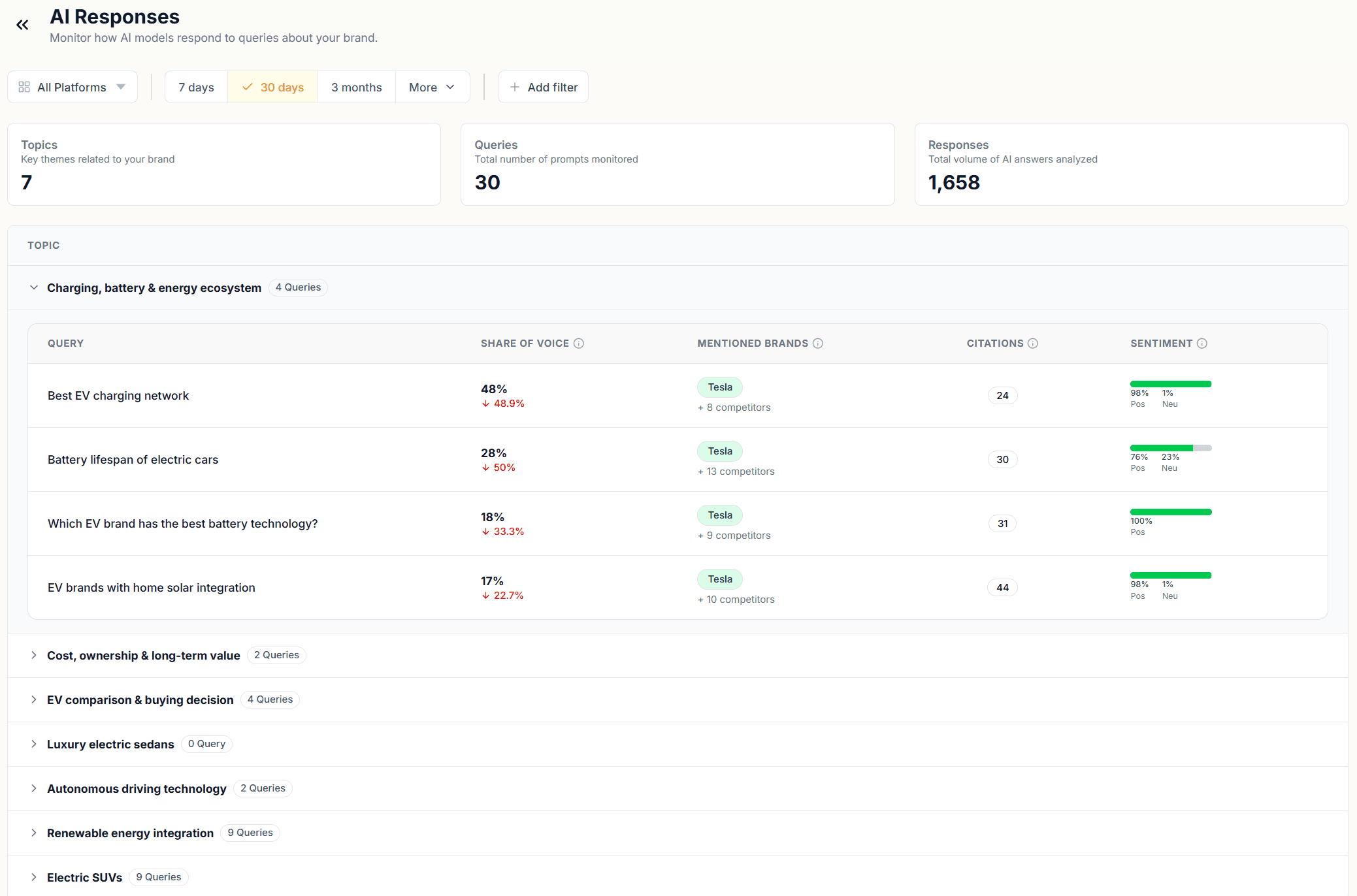
The module opens with three counts at the top: Topics, Queries, and Responses. These are the same figures you've seen elsewhere, but here they set the scope for what you're about to read. Every number in every other module traces back to the raw responses sitting in this view.
Below the counts, your topics are listed as expandable rows. Each topic shows its queries, and each query shows four columns: Share of Voice, Mentioned Brands, Citations, and Sentiment. This is the fastest way to scan across your entire tracked query set and spot which queries have low SOV, which have citation gaps, and which carry negative or neutral sentiment.
Click any query to open its detail view. The detail view has six tabs: AI Responses, Competition, Fan-out, Citations, Sentiment, and Statistics.
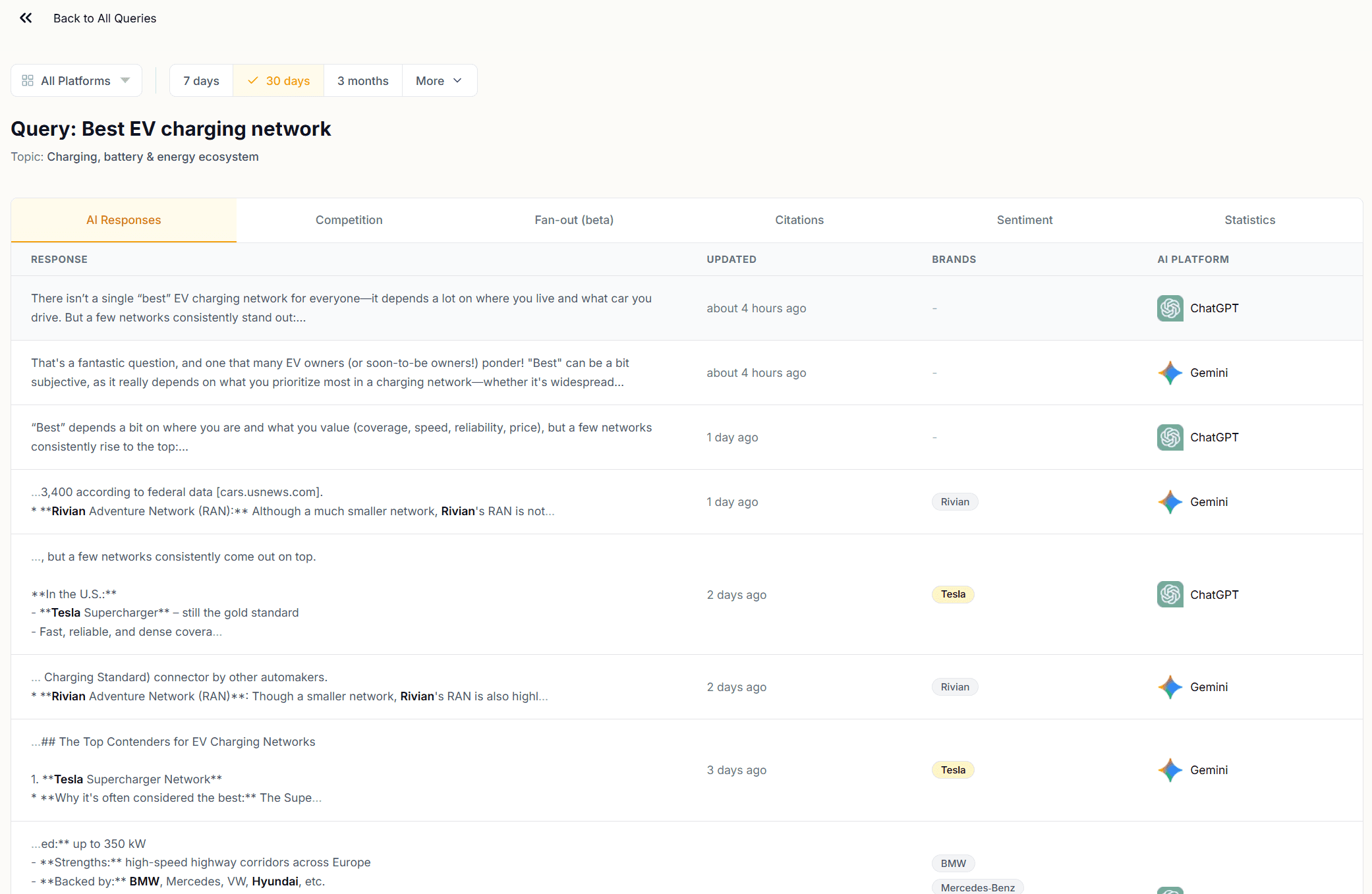
AI Responses Tab
The AI Responses tab shows the full text of every response Operyn collected for that query, listed chronologically with the AI platform and the timestamp for each.
Read these responses. The patterns you find here explain the numbers in every other module. Where your brand appears in a response matters as much as whether it appears. A brand named in the recommendations section carries more weight than one mentioned in passing mid-paragraph.
The Brands column next to each response flags which brands appear in that response. Use this to identify responses where a competitor appears without you, or where you appear without a citation following.
Competition Tab
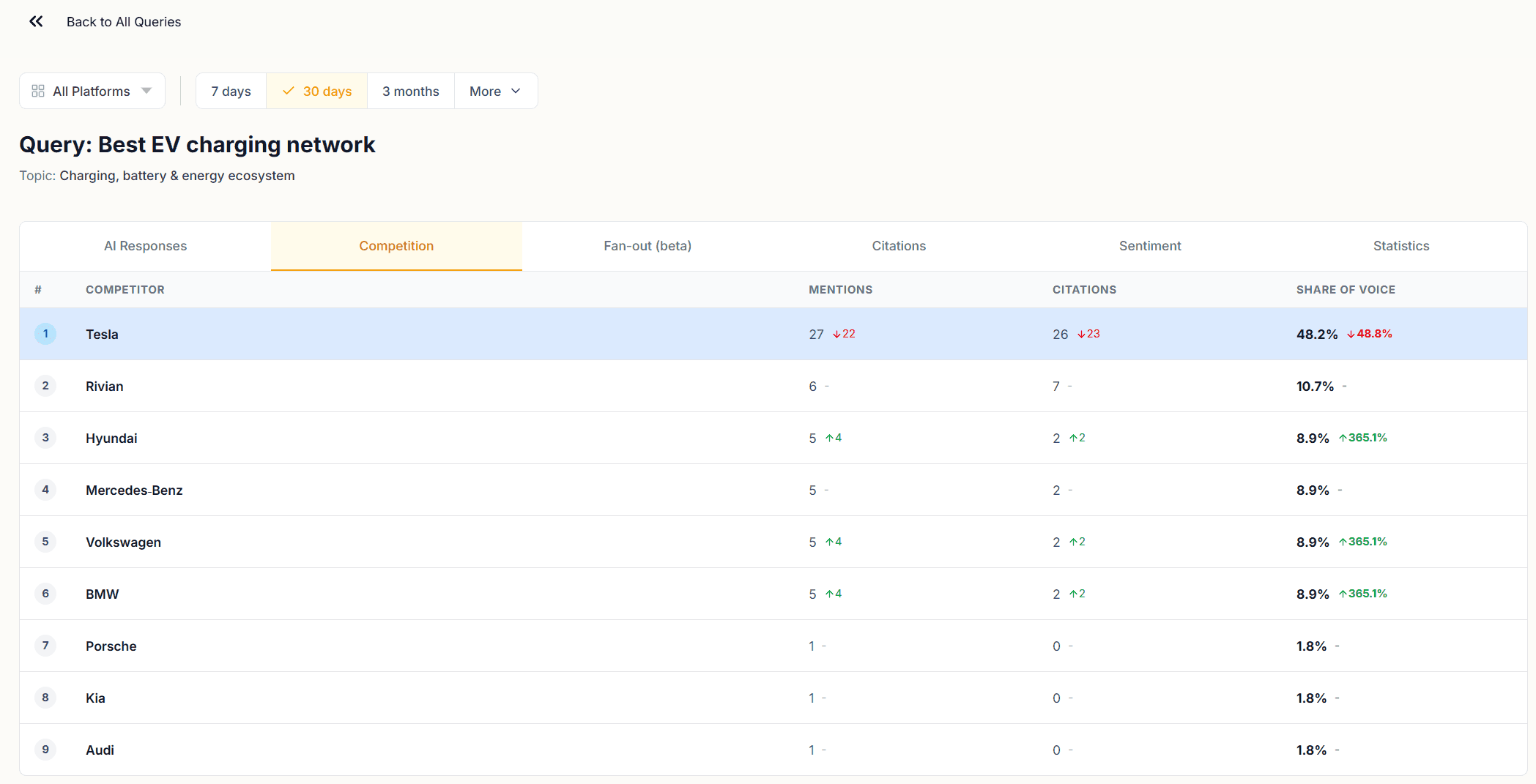
The Competition tab shows a ranked table of every brand that appeared across all responses for that query, with their Mentions, Citations, and Share of Voice.
This is the query-level version of the Brand Performance table in the Competition module. The difference is granularity. At this level you can see how the competitive landscape shapes up for a single question. A competitor who looks modest at the topic level may dominate a specific query. That query is where their content is strongest relative to yours.
A brand with high mentions and zero citations at the query level is one AI models name but don't source. If that brand is a competitor, they have recognition without authority for that question. If that brand is yours, the AI Responses tab will show you what the responses look like and where the citation gap is opening.
Fan-out Tab (beta)
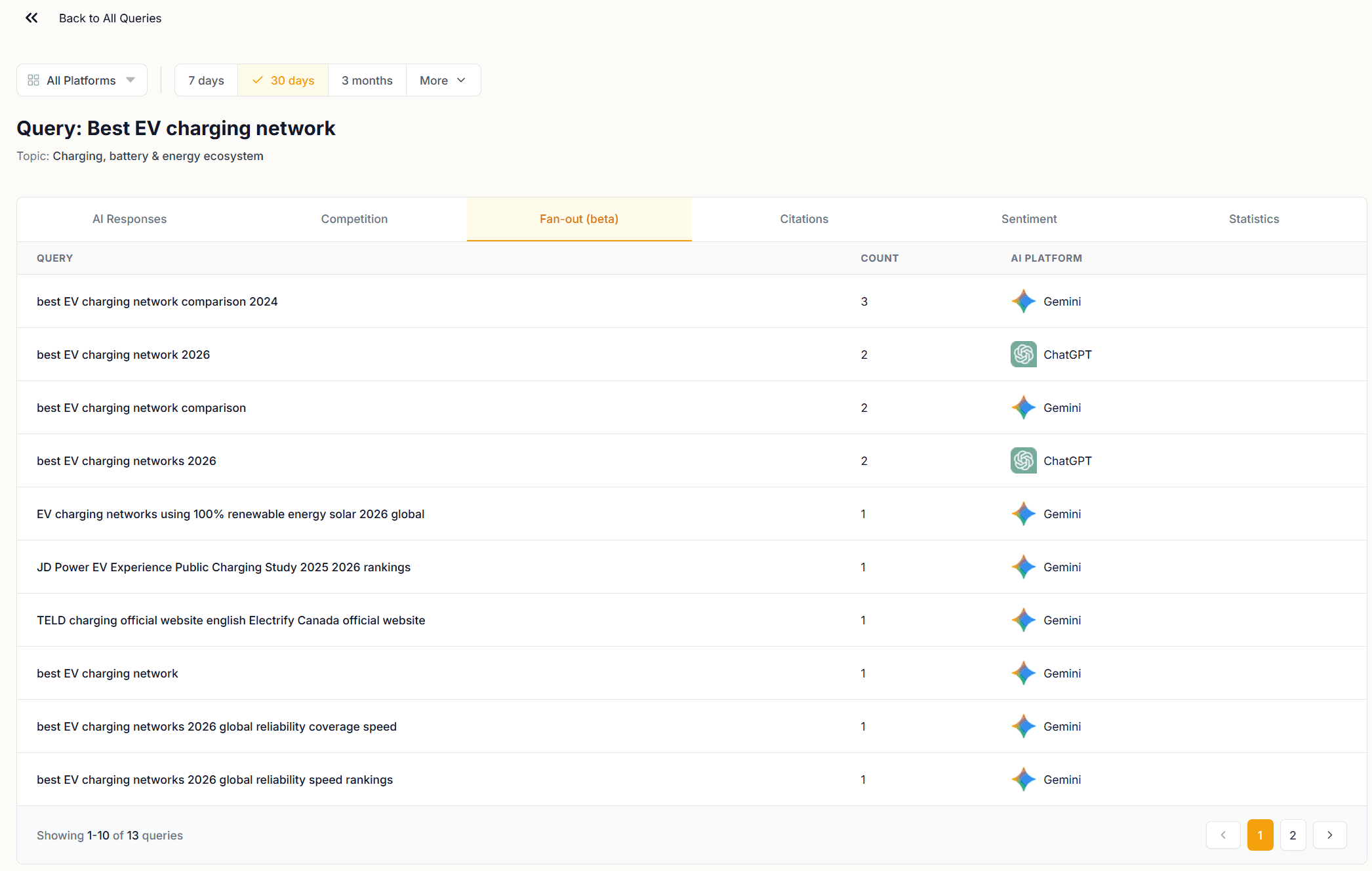
The Fan-out tab shows the sub-queries AI models generated when processing your tracked query. These are the internal searches run to construct a response, not your query as written, but the decomposed versions used to retrieve information.
This is one of the most direct windows into how AI models interpret your queries. A query you wrote to capture consideration-stage intent may fan out into sub-queries that are more transactional, more informational, or more competitive than you intended. Each sub-query in this list represents a retrieval path, and the content that ranks for those sub-queries is the content that ends up shaping the AI response.
Use the Fan-out tab to audit query intent alignment. If the sub-queries look like the content you've published, your pages are well-positioned. If they surface topics or framings your content doesn't cover, those are the gaps to close.
Citations Tab
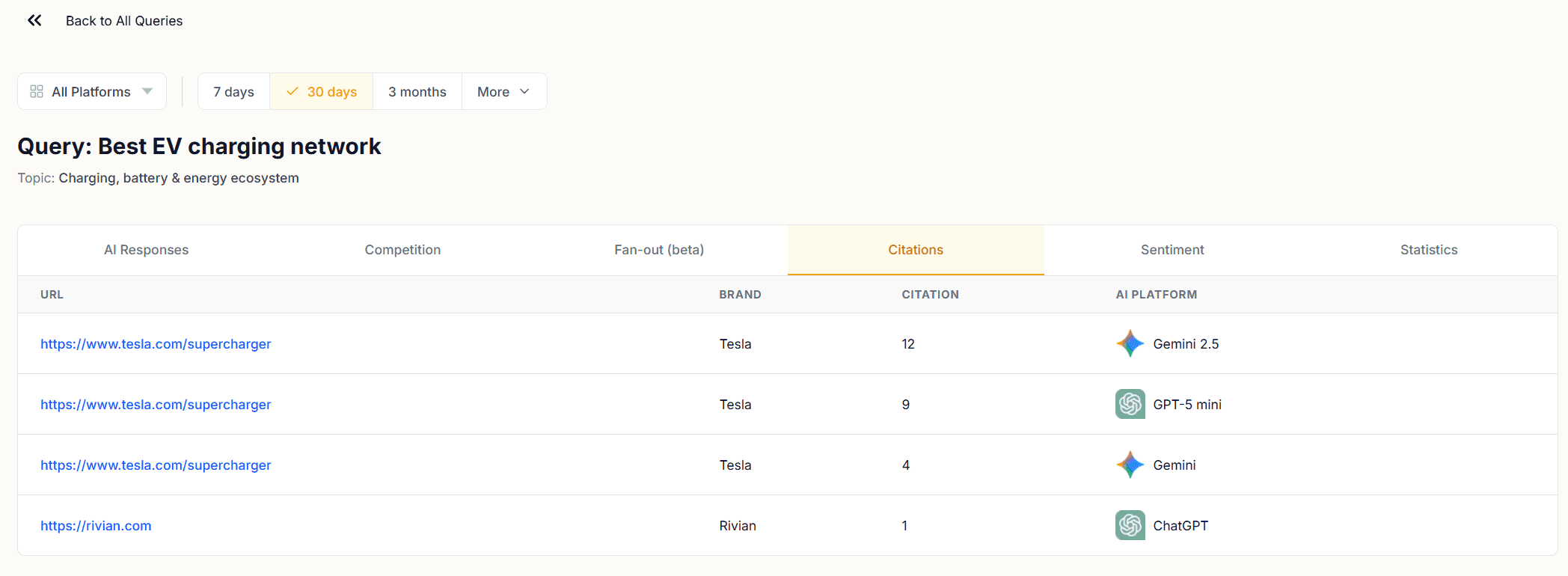
The Citations tab at the query level lists every URL that appeared as a citation in responses to that specific query, with the AI platform that cited it.
This is the query-to-URL resolution layer. You know from the Citations module which pages earn citations overall. Here you see which pages get cited when a specific question is asked. A URL that earns citations across many queries has broad content authority. A URL that only appears for one query is targeted, which is not a weakness, but it means that page's citation performance depends entirely on that query continuing to be asked.
Cross-reference this tab with the AI Responses tab. Find a response where your brand is mentioned but the citation slot went to a competitor. Then check the Citations tab to confirm which URL they cited. That URL is the specific piece of content outperforming yours for that question.
Sentiment Tab
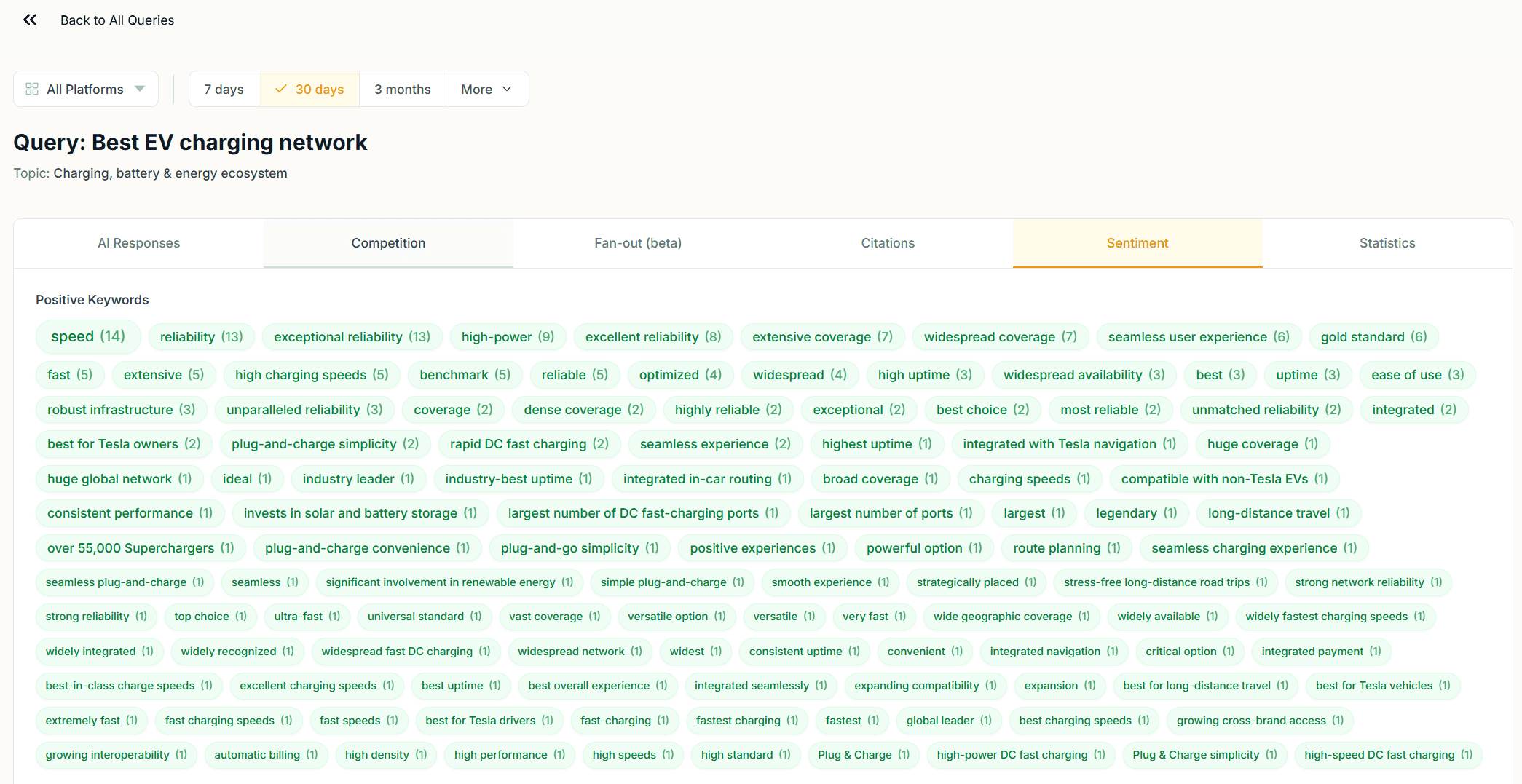
The Sentiment tab shows how AI models framed your brand across responses to that query: positive, neutral, or negative, with the specific response excerpts that drove each sentiment label.
Sentiment at the query level is more useful than sentiment at the topic level because it tells you the context in which a sentiment label was assigned. A neutral sentiment label at the topic level could mean cautious framing, comparative language, or hedged recommendations. Reading the excerpts here tells you which it is.
Pay attention to queries where sentiment shifts over time. A query that returned positive sentiment throughout the window and is now returning neutral responses may reflect a change in how AI models are framing your brand for that specific question: a content issue, a reputation signal, or a shift in competitor positioning.
Statistics Tab
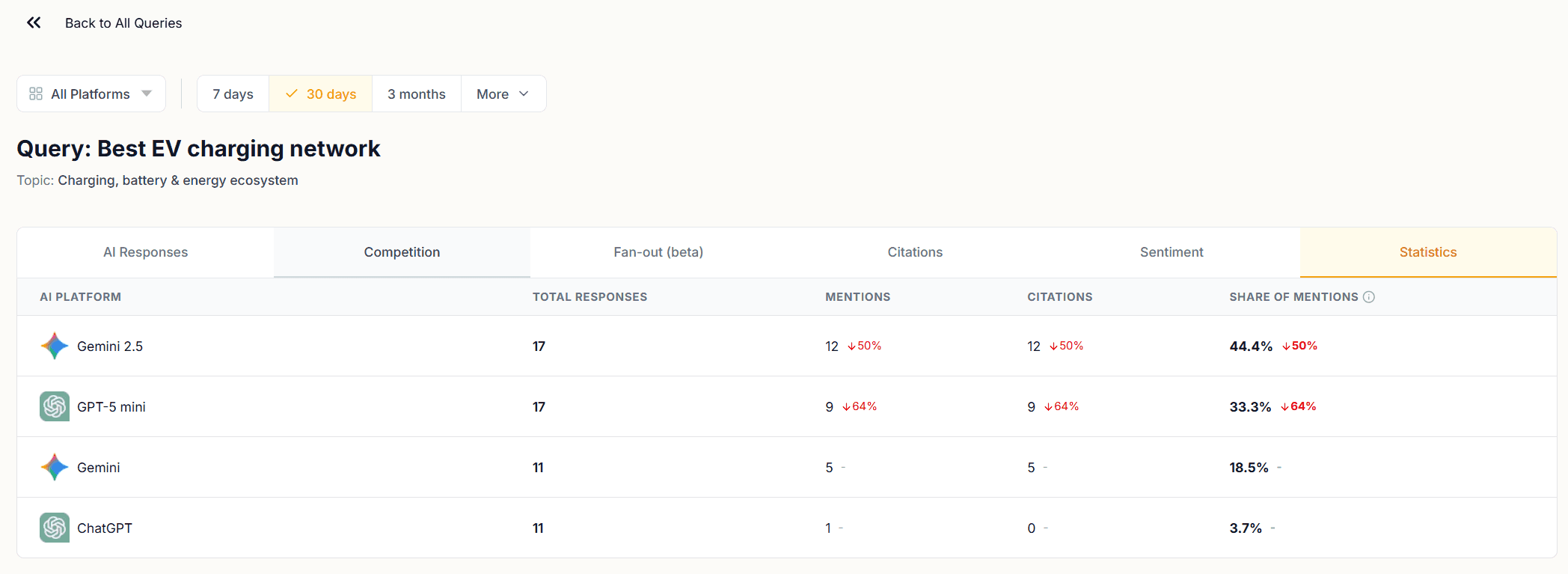
The Statistics tab shows response counts, mention counts, citation counts, and Share of Voice broken down by AI platform for that query.
Use this tab to identify platform-specific performance gaps. If ChatGPT and Gemini return different SOV figures for the same query, their responses are treating your brand differently. The AI Responses tab will show you what those differences look like in the actual text.
Reading AI Response Insights as a System
The six tabs work together. Start with the AI Responses tab to read what AI models actually said. Use the Competition tab to see who else appeared and how. Check the Fan-out tab to understand how the query was interpreted. Use the Citations tab to trace which URLs were sourced. Read the Sentiment tab to see how your brand was framed. Finish with the Statistics tab to compare platform-level performance.
A complete query audit takes all six. The queries worth auditing are the ones where your SOV is lower than the topic average, where citations are missing despite mentions, or where sentiment is neutral or negative.
Next in this series, Part 8: Allocating Content Resources Using the Topic Battlegrounds Matrix covers how to use competition data to prioritize which topic clusters deserve your next content investment.
Share on social media